
In today’s digital workspace, maximizing screen real estate has become essential for both professionals and gamers seeking peak performance. Multi-monitor setups offer unprecedented productivity gains, but configuring them optimally requires careful planning and precise calculations.

Whether you’re a graphic designer juggling multiple creative applications, a day trader monitoring market fluctuations across various charts, or a gaming enthusiast seeking immersive experiences, understanding how to properly configure your multi-monitor arrangement can transform your entire workflow. The challenge isn’t just about connecting multiple displays—it’s about creating a harmonious, ergonomic, and efficient environment that enhances rather than hinders your activities.
🖥️ Why Multi-Monitor Setups Demand Precise Calculations
Setting up multiple monitors isn’t as simple as plugging in displays and hoping for the best. Without proper planning, you might encounter frustrating issues like misaligned screens, awkward viewing angles, or wasted desk space. Multi-monitor calculator tools have emerged as indispensable resources for anyone serious about optimizing their display configuration.
These specialized calculators help you determine critical measurements including total screen width, ideal viewing distances, bezel compensation, resolution scaling, and desk space requirements. They eliminate guesswork and ensure your investment in additional monitors translates into genuine productivity improvements rather than ergonomic nightmares.
Understanding Display Metrics That Matter Most
Before diving into calculator tools, it’s crucial to understand the key measurements that define your multi-monitor experience. Screen size, measured diagonally in inches, is just the starting point. Aspect ratio determines the proportional relationship between width and height, with 16:9 being standard for most modern displays and 21:9 for ultrawide alternatives.
Resolution represents the number of pixels displayed horizontally and vertically, directly impacting image clarity and workspace capacity. Common resolutions include 1920×1080 (Full HD), 2560×1440 (QHD), and 3840×2160 (4K). Pixel density, measured in pixels per inch (PPI), affects how sharp text and images appear at typical viewing distances.
The Bezel Factor: Small Details, Big Impact
Monitor bezels—those frames surrounding the display area—might seem insignificant, but they create noticeable gaps in multi-monitor configurations. Modern thin-bezel displays minimize this interruption, but even minimal bezels accumulate across multiple screens. Quality multi-monitor calculators account for bezel width to provide accurate total display dimensions and help you visualize how seamless (or segmented) your setup will appear.
Essential Multi-Monitor Calculator Features to Look For
The best multi-monitor setup calculators offer comprehensive functionality beyond basic dimension calculations. Look for tools that provide visual representations of your configuration, allowing you to see how monitors will appear when arranged horizontally, vertically, or in mixed orientations.
Advanced calculators incorporate ergonomic recommendations, suggesting optimal viewing distances based on screen size and resolution. They calculate total pixel counts across all displays, helping you understand the GPU requirements needed to power your setup effectively. Some tools even estimate power consumption and recommend appropriate mounting solutions based on your configuration choices.
Interactive Configuration Builders
The most sophisticated calculators function as interactive design tools where you can drag, drop, and rearrange virtual monitors to experiment with different layouts. These platforms let you input specific monitor models from their databases, automatically pulling accurate specifications including exact dimensions, native resolutions, and bezel measurements.
Some advanced tools integrate with furniture dimensions, allowing you to verify that your planned setup actually fits your desk or workspace. This feature prevents costly mistakes where enthusiastic users purchase multiple large displays only to discover they physically cannot accommodate them in their available space.
Top Multi-Monitor Calculator Tools for 2024 🚀
Several exceptional calculator tools have earned recognition among productivity enthusiasts and gaming communities. DisplayFusion Multi-Monitor Calculator offers comprehensive functionality with an extensive monitor database and excellent visual configuration tools. It supports mixed monitor setups with different sizes and resolutions, calculating combined workspace measurements accurately.
Monitor Resolution Calculator by Online-Calculators.com provides straightforward calculations focused on viewing distance recommendations and pixel density comparisons. It’s particularly valuable when comparing different monitor sizes to determine which offers the best balance between screen real estate and comfortable viewing.
Specialized Gaming Monitor Calculators
Gamers have unique requirements including refresh rate considerations, response time optimization, and immersive viewing angle calculations. Gaming-focused calculators like the Ultrawide Monitor Calculator help determine whether curved displays enhance or diminish peripheral vision based on seating position and screen curvature specifications.
These specialized tools calculate the field of view (FOV) across multiple displays, critical information for sim racing, flight simulation, and first-person gaming experiences. They help gamers understand GPU requirements for maintaining target frame rates across total pixel counts that can exceed 10 million pixels in triple 4K configurations.
Calculating the Perfect Viewing Distance and Ergonomics
Viewing distance significantly impacts both visual comfort and productivity. Generally, you should sit approximately 1.5 to 2.5 times the diagonal screen size away from your displays. For a 27-inch monitor, this translates to roughly 40-68 inches (100-170 cm). Multi-monitor calculators help determine optimal positioning when displays of different sizes are combined.
Vertical positioning matters equally. The top of your primary display should align at or slightly below eye level, reducing neck strain during extended sessions. Secondary monitors in multi-display setups should maintain similar vertical alignment to minimize eye fatigue when shifting focus between screens.
Preventing Digital Eye Strain in Extended Sessions
Multi-monitor setups increase overall light output and require more frequent eye movement, potentially accelerating digital eye strain. Proper distance calculations help mitigate these effects by ensuring you’re neither too close (causing eye fatigue) nor too far (forcing you to lean forward, compromising posture).
Calculator tools that incorporate brightness recommendations based on ambient lighting conditions add valuable ergonomic guidance. They might suggest reducing brightness on peripheral displays or recommend blue light filtering for setups used during evening hours.
Productivity Gains: Quantifying Multi-Monitor Benefits 📊
Research consistently demonstrates measurable productivity improvements from multi-monitor configurations. Studies indicate productivity gains ranging from 9% to 50% depending on task types and proper implementation. Knowledge workers who frequently reference information while creating content see particularly dramatic improvements.
Multi-monitor calculators help quantify these benefits by showing total available screen real estate in square inches or centimeters. A dual 27-inch setup provides approximately 1,350 square inches of display area—substantially more than a single 34-inch ultrawide monitor despite similar horizontal spans.
Task-Specific Configuration Optimization
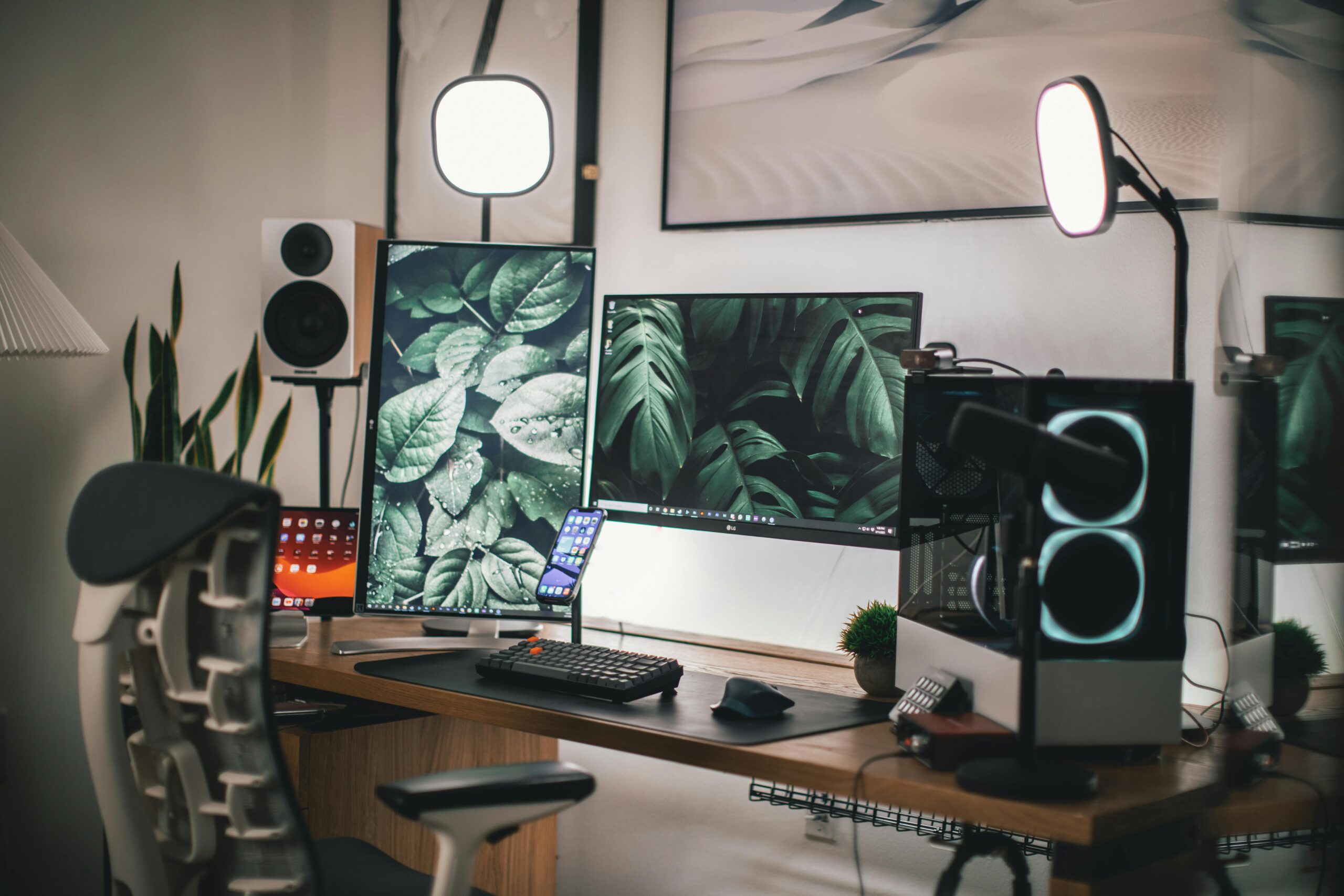
Different professions benefit from different multi-monitor arrangements. Software developers typically favor horizontal configurations with code on the primary display and documentation, debugging tools, or preview windows on secondary screens. Video editors often prefer one large primary display for timeline work with a secondary portrait-oriented monitor for tool palettes and media libraries.
Financial professionals frequently employ three to six monitor configurations, each dedicated to specific market data feeds, analysis tools, or communication platforms. Calculator tools help these users plan arrangements that minimize head movement while maximizing information density within comfortable viewing zones.
Gaming Immersion: Building the Ultimate Battle Station
Gaming multi-monitor setups prioritize immersion and peripheral vision expansion. Triple monitor configurations create panoramic viewing experiences, particularly effective in racing simulators, flight games, and open-world exploration titles. The most popular gaming arrangements use three identical monitors in landscape orientation, creating seamless horizontal continuity.
Curved displays enhance immersion by wrapping the visual field around your peripheral vision. Multi-monitor calculators designed for gaming help determine optimal curvature ratings (measured as radius in millimeters, like 1000R or 1800R) based on seating distance and display size.
Refresh Rate and Performance Considerations
High refresh rate displays (144Hz, 240Hz, or higher) have become gaming standards, but driving multiple high-refresh monitors demands substantial GPU horsepower. Gaming calculator tools estimate total pixel throughput requirements, helping you understand whether your graphics card can maintain target frame rates across all displays simultaneously.
For competitive gaming, many players use high refresh rate primary displays for fast-paced action while placing standard 60Hz monitors in secondary positions for maps, chat, or streaming software. Calculators help balance performance requirements with budget constraints by modeling mixed-refresh configurations.
Desk Space Planning and Physical Measurements 📏
Even perfect monitor calculations become meaningless if your desk cannot physically accommodate your planned setup. Comprehensive calculator tools incorporate desk dimension inputs, warning you when configurations exceed available space. They account for monitor stands or VESA mount arms, which can significantly alter spatial requirements.
Standard monitor stands often have surprisingly large footprints, with bases extending 8-12 inches forward from the display. Mounting arms reduce desk surface consumption while offering adjustment flexibility, but require adequate desk depth and edge access for secure attachment.
Cable Management and Connectivity Planning
Multi-monitor setups generate substantial cable complexity. Each display requires power and video connections, with some configurations also incorporating USB hubs, audio connections, and peripheral devices. Advanced planning tools help you inventory required cables and ports, ensuring your graphics card and power strips can actually support your intended configuration.
Modern USB-C displays with daisy-chaining capabilities can simplify cable management dramatically, but require compatible devices and careful bandwidth calculations. Some calculator tools now incorporate connection topology planning, mapping out daisy-chain sequences and bandwidth allocation across Display Port or Thunderbolt connections.
Budget Optimization Through Strategic Planning
Multi-monitor investments can range from a few hundred to several thousand dollars. Calculator tools that incorporate pricing databases help you understand cost implications of different configuration choices. They reveal that sometimes three mid-range 24-inch monitors provide better total value than two premium 32-inch displays.
Strategic planning identifies where to invest for maximum impact. For productivity-focused setups, resolution and screen size typically matter more than gaming-specific features like high refresh rates. Gaming configurations might prioritize fast refresh on the primary display while using budget-friendly secondary monitors for peripheral content.
Future-Proofing Your Investment
Technology evolves rapidly, making future-proofing considerations essential. Calculators that track emerging display standards help you make informed decisions about adopting technologies like HDMI 2.1, Display Port 2.0, or HDR compatibility. They might recommend investing slightly more in connectivity standards that ensure your monitors remain relevant as content and GPU capabilities advance.
Software and Operating System Configuration Considerations
Physical setup represents only half the multi-monitor equation. Operating system configuration determines how effectively you can utilize available screen space. Windows, macOS, and Linux each handle multiple displays differently, with varying capabilities for taskbar extension, window snapping, and workspace management.
Dedicated multi-monitor software enhances native OS capabilities. DisplayFusion, Actual Multiple Monitors, and similar tools add features like per-monitor wallpapers, advanced window management, and customizable hotkeys for moving windows between displays. Some calculators now link to recommended software based on your operating system and configuration type.
🎯 Making Your Final Configuration Decision
Armed with calculator-generated insights, you can confidently finalize your multi-monitor setup. Start by clearly defining your primary use cases—productivity work, gaming, content creation, or mixed usage. This clarity guides every subsequent decision from monitor selection to arrangement planning.
Prioritize ergonomics alongside performance. The most powerful configuration delivers diminished returns if it causes physical discomfort or eye strain. Use calculator recommendations for viewing distances and positioning as starting points, then adjust based on personal comfort during extended sessions.
Consider implementation phases if budget constraints limit immediate full deployment. Many calculator tools support staged expansion planning, helping you start with a dual-monitor foundation designed for seamless future expansion to triple or quad configurations without requiring complete reconfiguration.
Transforming Your Digital Workspace Experience
Multi-monitor setup calculators transform what could be an overwhelming configuration challenge into a manageable, data-driven process. They eliminate expensive mistakes, optimize ergonomics, and ensure your investment delivers genuine productivity or gaming improvements rather than becoming an uncomfortable, inefficient arrangement you tolerate rather than enjoy.
The difference between a good multi-monitor setup and a great one often comes down to proper planning. Those few hours spent with calculator tools, carefully considering dimensions, distances, and arrangements, pay dividends through years of comfortable, productive use. Your digital workspace becomes a precision tool tailored to your specific needs rather than a haphazard collection of displays competing for attention.
Whether you’re embarking on your first dual-monitor configuration or planning an elaborate six-display command center, leveraging specialized calculator tools ensures your screen space works for you, not against you. The investment in proper planning delivers returns measured not just in productivity metrics or gaming performance, but in daily comfort and sustained enthusiasm for the digital work and play that fills your screens.